Image editing
Remove an Image Background
Upload a product photo, portrait, logo, or piece of artwork and get a clean transparent-background image back. The AI option handles real-world scenes, hair, shadows, and uneven backgrounds for 3 credits.
Try it now
Free to try, no account needed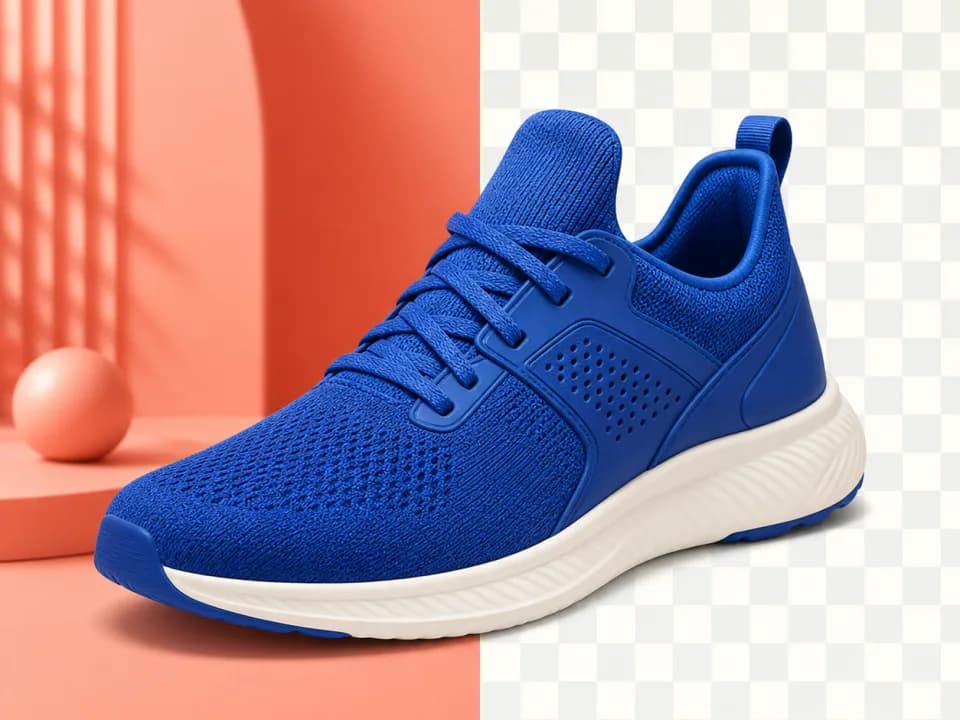 Example output
Choose an image to replace this example, then select your settings.
About this tool
For sticker art, logos, and scans on flat white, choose White background instead. It removes only white pixels connected to the image edge, so enclosed white lettering and highlights stay intact. That deterministic option is free and finishes locally without sending the image to an AI model.
Download the finished result with transparency preserved, then use it in a product listing, presentation, design layout, sticker sheet, or any editor that accepts transparent images.
Frequently asked questions
Practical answers about inputs, output formats, credits, and using this tool in a real creative workflow.
Which background removal mode should I use?
- Use AI removal for photos, portraits, textured scenes, and any background that is not plain white. Use the free White background mode for logos, sticker art, scans, and product graphics on a flat white canvas.
Will the free white-background option erase white details?
- It only clears near-white pixels connected to an outside edge. Enclosed white text, highlights, and interior areas remain, which makes it safer than a global color-removal tool for outlined artwork.
What file types can I upload?
- You can upload PNG, JPEG, or WebP images up to 10 MB. The original upload encoding is preserved before processing so the tool does not add a lossy conversion step.
How much does background removal cost?
- AI background removal costs 3 credits per image. Removing a flat white background with the border-connected white option is free.
Related tools
Image editing
AI Jewelry Photography for Ecommerce Brands
AI jewelry photography for ecommerce: upload one product photo and create clean catalog, on-model, and luxury campaign images. Free to try.
Image editing
Restaurant Food Photography From One Dish Photo
Restaurant food photography without a reshoot: upload a real dish photo and create polished menu, delivery-app, and social images. Free to try.

Image editing
AI Product Photography Generator
AI product photography from one photo: upload your product, pick a scene, and get lifestyle images for Amazon galleries, Shopify pages, and ads. Free to try.
Image editing
Upscale an Image With AI
Upscale an image to 2× or 4× its original dimensions with AI enhancement for sharper prints, product listings, and high-resolution exports.