Guides
How to Make a Carousel on Instagram
How to make a carousel on Instagram: the exact steps, the 20 slide limit, the aspect ratios Instagram supports, and how to design slides that get swiped.
Here is how to make a carousel on Instagram: tap Create, choose Post, pick your first photo or video, tap the multi-select icon, add up to 20 items, pick one orientation for the whole set, then add a caption and share. Instagram calls this a post with multiple photos and videos; everyone else calls it a carousel. The mechanics take about a minute. The part that decides whether anyone swipes past slide one is the design, and that is where most carousels are lost. This guide covers both: the current steps and limits straight from Instagram's Help Center, then how to build a slide set that holds attention.
How to make a carousel on Instagram, step by step
These steps follow Instagram's Help Center article on sharing a post with multiple photos or videos. The flow is the same on iPhone, Android, and the web, with only the wording of the buttons changing.
- Open Create and choose Post. On the phone app that is the plus icon; on the web it is Create in the left sidebar.
- Select your first photo or video. Whatever you pick first sets the cover and the crop for everything after it.
- Tap the multi-select icon, then the plus sign. This is the stacked-squares icon in the gallery view. It switches the picker from single to multiple.
- Add up to 20 photos and videos. They can be any mix of stills and clips. The order you tap them is the starting order.
- Choose one orientation. Instagram states that "the orientation you choose (square, portrait or landscape) affects all of the photos or videos in your post." There is no per-slide shape.
- Tap Next and edit. Filters and adjustments can be applied to every item at once or to individual items.
- Reorder by pressing and dragging. Hold an item and drag it to a new position. Tap the close icon on anything you want to drop.
- Add one caption and location, then tag people per slide. The caption and location belong to the whole post. People tags attach to individual photos.
- Share.
One thing worth knowing before you publish: videos inside a carousel stay in the carousel. They are not published as Reels, so a clip you want in the Reels feed needs its own post.
Slide count, Instagram carousel size, and the limits that catch people out
The specs below are the ones Instagram publishes. Note the aspect ratio range in particular, because it changed in 2025 and most guides still quote the old numbers.
| Spec | Current value |
|---|---|
| Maximum slides per carousel | 20 photos and videos |
| Minimum slides | 2 |
| Supported aspect ratios | Between 1.91:1 and 3:4 |
| Upload width Instagram keeps | Up to 1080 pixels wide (height 566 to 1440) |
| Below the minimum | Photos under 320 pixels wide get enlarged to 320 |
| Orientation | One shape for every slide in the post |
| Carousels published through the Instagram API | 10 items |
The details behind those rows:
- 20 is the app limit, and it is recent. Instagram's Help Center now says you can share "up to 20 photos and videos as a single post." The limit was 10 for years, so older tutorials are wrong on this.
- The tallest supported shape is 3:4, not 4:5. Instagram's page on image resolution says a photo keeps its original resolution when it is between 320 and 1080 pixels wide and "the photo's aspect ratio is between 1.91:1 and 3:4 (a width of 1080 pixels with a height between 566 and 1440 pixels)." Anything outside that range gets cropped to fit. Instagram added native 3:4 support in May 2025; 4:5 at 1080 x 1350 still works and is still the most common choice for carousels.
- Design at 1080 pixels wide. Instagram reduces anything wider back to 1080, so exporting a 4000-pixel-wide slide buys you nothing except a slower upload.
- Schedulers are capped at 10. Meta's content publishing documentation states that "carousels are limited to 10 images, videos, or a mix of the two." Any third-party tool that publishes through the official API inherits that limit, so a 20-slide carousel has to go out from the app itself.
For the full pixel breakdown across every Instagram format, see the Instagram post size guide.
Why can't I do a carousel on Instagram?
Almost always one of four things:
- You are in the wrong picker mode. The multi-select icon has to be tapped before you can add a second item. Without it, Instagram assumes a single post.
- You are in the Reels or Story composer. Carousels are a feed format. Starting from Reels or Story gives you no multi-select option.
- Your app is out of date. The 20-slide limit and 3:4 support arrived in app updates. An old build will still cap you at 10 or force a crop.
- One of the files is unsupported. A file type or ratio Instagram will not accept can silently drop out of the selection instead of throwing a clear error.
If multi-select is visible but greyed out after 20 items, that is not a bug. That is the ceiling.
How to organize a carousel on Instagram
Order is set before you post by pressing and holding a slide, then dragging it into place in the composer. Instagram also supports changing it afterwards: open the three-dot menu on the right side of the carousel, choose Edit, then long press to reorder. You can remove slides the same way.
What you cannot do is add new photos or videos to a carousel that is already published. There is no "append a slide" action, so a post that is missing something has to be deleted and rebuilt, which costs you the engagement it has already collected. Plan the full sequence before you hit Share.
Designing carousel slides people actually swipe through
The design job is different from a single post. You are not making one image, you are making a sequence that has to survive a thumb.
- Slide one is a cover, not content. It has one job: make the swipe feel worth it. One short line of large type and one clear visual beats a dense first slide every time.
- Slide two has to work as a cover too. Instagram head Adam Mosseri has said that "if someone sees your carousel post but they don't swipe, we'll often give that carousel a second chance and automatically move to that second piece of media for the viewer" (quoted here). A slide two that only makes sense after slide one wastes that second chance.
- Commit to one shape. Since orientation applies to the entire post, mixing a landscape photo into a portrait set means Instagram crops it. Export every slide at the same dimensions, usually 1080 x 1350.
- Keep a visible system across slides. Same palette, same margins, same type sizes, same position for any recurring element. Consistency is what makes a set read as one piece rather than a folder of images.
- Respect the margins. Feed rendering, the profile grid crop, and the swipe indicator all eat edges. Keep text well inside the frame.
- Give the last slide a job. Save, follow, comment, link in bio. A carousel that just stops leaves the intent on the table.
- Seamless carousels are a manual crop, not a feature. Instagram has no panorama mode. You design one wide canvas, slice it into equal slide-width pieces, and upload the pieces in order. Each slice still has to obey the ratio limits above.
Length is a judgement call, not a rule with a right answer. A tight five-slide set that earns every swipe outperforms 20 slides of padding, and Instagram publishes no guidance on optimal count. Use the slides the idea needs.
How an AI carousel generator handles the slide set
Designing eight matching slides by hand is the reason most carousels never get made. An AI carousel generator changes the unit of work: instead of laying out each slide, you describe the idea, the style, and the role each slide plays, and generate the artwork as a matching set. The carousel graphics generator is built around exactly that, with slide roles for the hook, the middle content slides, and the closing call to action, plus a consistency instruction that carries identical margins, palette, and decorative motifs across every slide in the sequence.
Try it now
Free to try, no account needed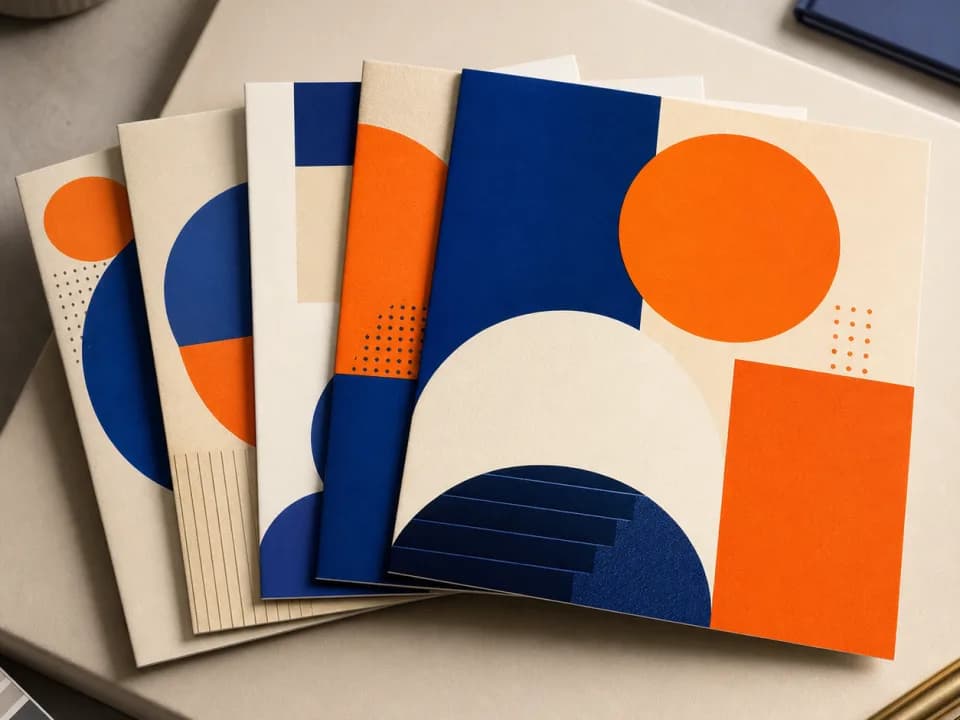 Example output
Your generated image will replace this example.
What an Instagram carousel generator can and cannot do
An Instagram carousel generator is good at the part that is slow and repetitive: backgrounds, layouts, and a visual system that repeats cleanly. It is unreliable at rendering words. Image models still mangle small type, so the practical workflow is to generate the slide art clean, with open space where the text belongs, then set the actual copy in Canva, Figma, or any layout tool. You get the design consistency without trusting a model to spell.
Carousels are one format in a wider set. The same approach covers quote cards and seasonal promo graphics, and the AI social media post generator hub collects the rest. If the recurring problem is that every post needs a consistent face rather than a consistent layout, AI Instagram models and the guide to creating an AI influencer cover that side.
How to make scrolling pictures on Instagram
"Scrolling pictures" usually means one of two things, and they are built differently:
- A standard carousel. Multiple separate images the viewer swipes through, made with the steps above. Each slide stands on its own.
- A seamless carousel. One wide image split across several slides so the artwork appears to continue as you swipe. Design a single canvas that is the slide width multiplied by the number of slides, keeping the slide height, then export equal vertical slices and upload them left to right. Because Instagram crops to a supported ratio, check each slice at its final dimensions before uploading, or the seam will not line up.
Neither is a special post type. Both are the same feed carousel; the difference is entirely in how you prepare the files.
The mechanics are simple enough that they are never the bottleneck. Twenty slides, one orientation, ratios between 1.91:1 and 3:4, order locked before you publish. The work that pays is the sequence: a cover worth swiping, a second slide that stands alone, and a visual system consistent enough that the whole set reads as one thing.