Guides
Image to Video AI: How to Animate an AI Image (2026)
Image to video AI turns a still into a short clip. Here is why generating the image first, then animating it, beats straight text to video, and how to do it.
Image to video AI turns a static image into a short video clip. The reliable way to do it is not text to video: generate the still first, get the composition and branding right for a couple of credits, then animate the exact frame you approved.
That order matters. A text-to-video prompt gambles the whole clip on one shot, and every regeneration is a full-price video. Text to image to video lets you iterate cheaply on a still until the framing, product, and identity are correct, then spend the video credits once, on an image you have already signed off. This guide covers why that workflow wins, how to run it, which models do the animating, and where the technology still falls short.
What is image to video AI?
Image to video AI is a model that takes a single image as the first frame and generates motion from it: camera moves, subject movement, and in the newer models, synchronized audio. You supply the picture and a short description of the action, and the model produces a clip of a few seconds.
This is different from text to video, where the model invents both the look and the motion from a written prompt alone. With image to video you have already fixed the hardest variable, the appearance of the shot, so the model only has to solve movement. That is why animating an approved still is more predictable than describing a scene from scratch.

Why text to image to video beats straight text to video
The cost structure is the reason. A still image costs a few credits and takes seconds; a video clip costs far more and takes longer. If you drive straight from text to video, every fix, a wrong logo, an off-brand color, an awkward crop, burns a full video generation. So you iterate where it is cheap, then animate once.
- Iterate on the still, not the clip. Fix composition, product accuracy, lighting, and brand details on a 2-credit image. You can run ten variations for less than one video.
- Approve exactly what animates. The image you sign off is the literal first frame of the clip, so there are no surprises introduced between approval and render.
- Keep identity locked. A character or product that is already consistent in the still stays consistent in the clip, because the motion model starts from your frame instead of reinventing the subject.
- Spend video credits with intent. You only pay the higher video cost on frames that already earned it in review.
Text to video is still useful when you have no reference and want to explore motion ideas fast. But for anything with a brand, a product, or a face attached to it, approving the frame first is the difference between a predictable deliverable and an expensive slot machine. If you want the mechanics underneath the still, our explainer on how AI image generation works covers the diffusion step that produces that first frame.
How to turn an AI image into a video
The workflow is four steps, and only the last one spends video credits. In Dream Pixel Forge every image you generate carries an Animate action, so the handoff from still to clip is one click, not an export and re-upload.
- Generate the still. Use the image generator to produce the frame. Describe the scene, pick an aspect ratio, and generate. Images start at 2 credits, so this is the cheap part.
- Iterate until the frame is right. Regenerate and adjust the description until composition, product, and brand details are correct. Approve the exact frame you want moving.
- Animate it. Trigger the Animate action on that image, describe the motion you want (a slow push in, a product turn, a subject glancing up), and choose clip length and resolution.
- Review and reuse. Check the clip, regenerate the motion if needed, and keep the still on file so you can produce alternate cuts from the same approved frame later.
Try it now
Free to try, no account needed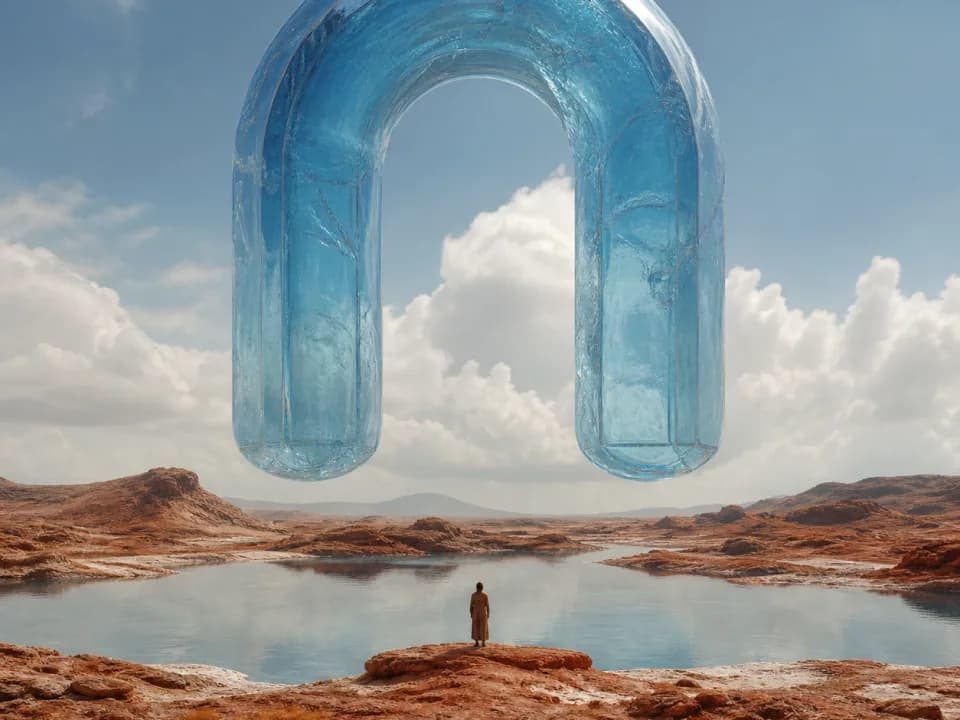 Example output
Your generated image will replace this example.
Which models animate the image, and what they cost
Dream Pixel Forge routes image to video through three model families, so you pick the tradeoff of quality, speed, and audio per clip rather than being locked to one engine.
- Google Veo 3.1 and Veo 3.1 Fast. High-fidelity motion with native audio generated alongside the video. Fast trades some quality for a quicker, cheaper render.
- ByteDance Seedance 2.0 and Seedance 2.0 Fast. Strong motion with native audio, and a fast variant for iteration.
- xAI Grok Imagine Video. A third engine for a different motion character when you want an alternative look.
Clips run 4 to 10 seconds at 720p or 1080p, with native audio on the Veo and Seedance models. Cost is credit-based and scales with the model, the clip length, and whether you generate audio: a short, fast clip is roughly 20 credits, and a long, high-resolution clip with audio runs up to around 210. Video is available on the paid plans; the free tier stays image-only. Starter (12 dollars a month) unlocks the standard video models (Seedance, Grok Imagine Video), while the premium Veo models need Pro (29 dollars) or Studio (79 dollars). See the pricing page for current credit costs per model.
Image to video for a consistent character or influencer
The workflow pays off most when the subject has to stay the same person across many clips. If you have locked a character's identity, image to video keeps that face in motion instead of drifting to a new one every render, because the clip inherits your approved frame.
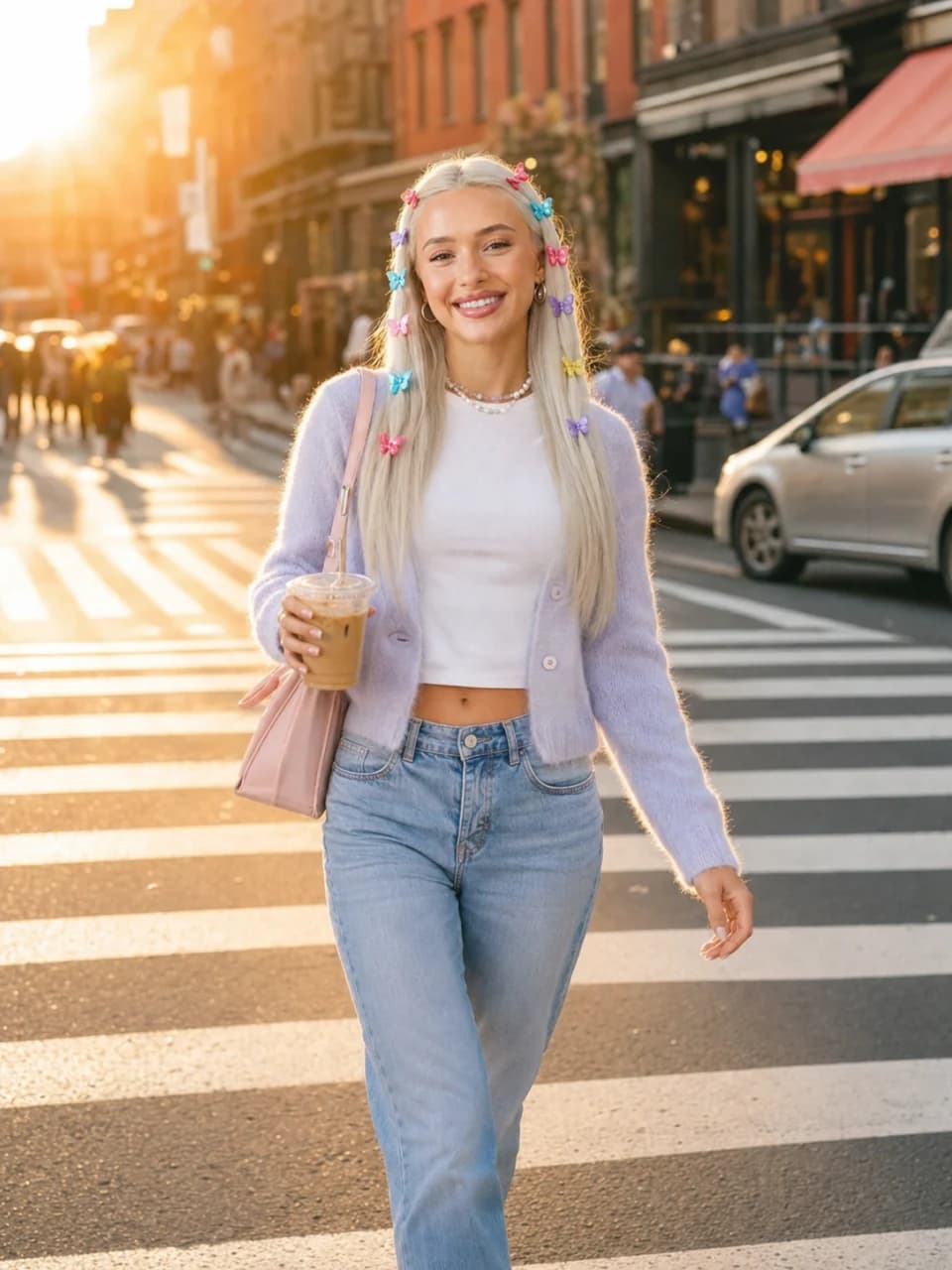
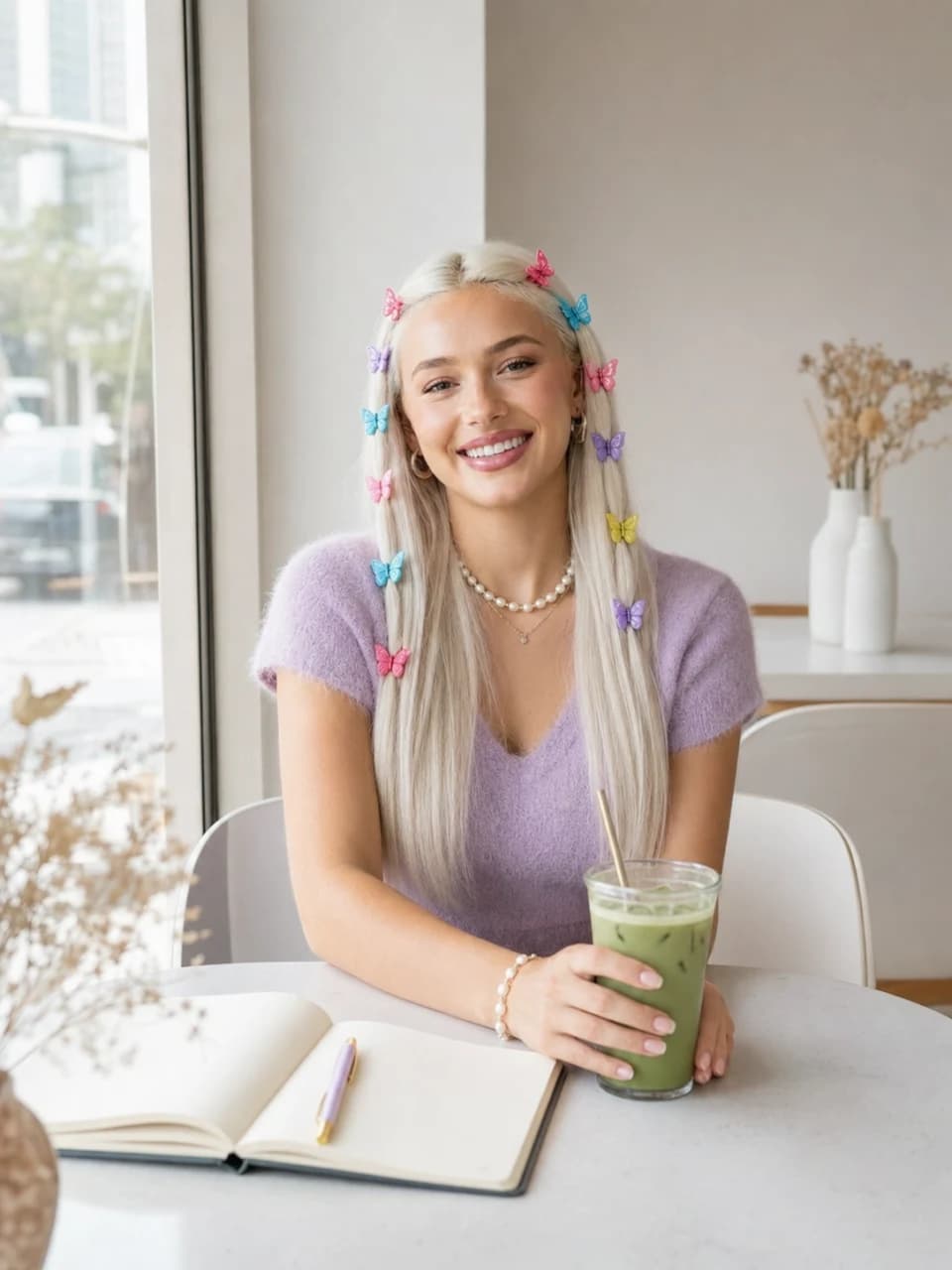
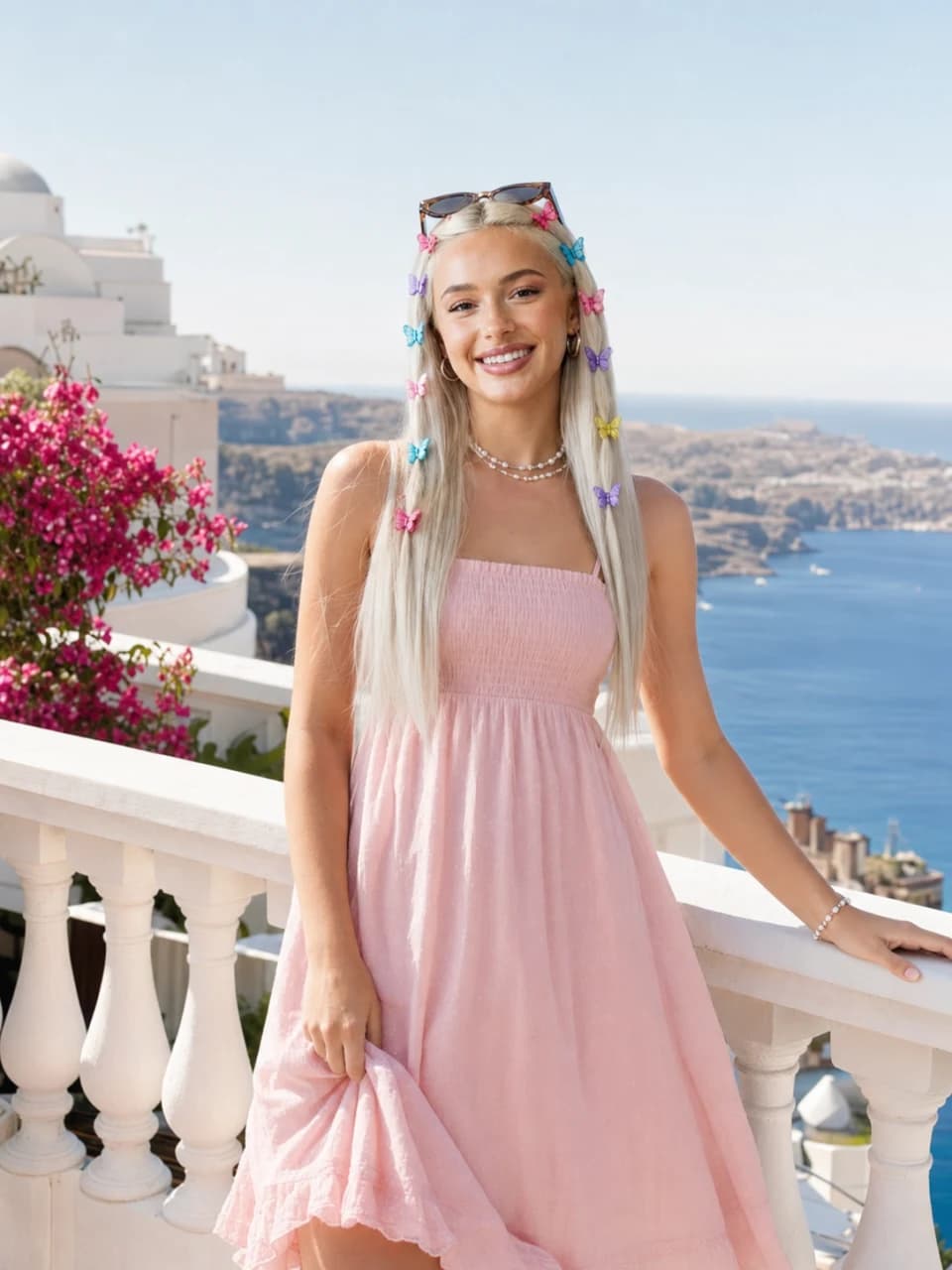
This is how persona video works in Dream Pixel Forge: you build a consistent persona with the influencer generator, generate an on-model still, then animate that single approved image with Grok Video. Veo and Seedance remain available for text-only and non-person image-to-video work, but their provider paths filter photoreal-person inputs, so Dream Pixel Forge refuses that combination before charging credits. The same principle that keeps a still on-model, covered in our guide to keeping the same character across every image, is what makes the video believable. For the full persona setup, see how to create an AI influencer.
One approved character, three motion briefs
Each clip starts from the exact Chloe still shown beside it.
 Still
StillCity coffee run
Walking pace + gentle handheld camera
 Still
StillMorning matcha
Small hand movement + natural expression
 Still
StillMediterranean escape
Slow push-in + subtle environmental motion
What image to video AI still gets wrong
Set expectations before you spend the credits. Current models animate a single frame convincingly for a few seconds, but they are not a replacement for a shoot, and long or complex motion is where they break.
- Length is short. Clips are seconds, not minutes. Longer sequences mean stitching multiple clips, and continuity across cuts is your job.
- Fast, complex motion drifts. Simple camera moves and gentle subject motion hold up best. Fast action, many moving parts, and precise hand or lip detail are where artifacts appear.
- Text and fine detail can wobble. Small text and intricate patterns that look clean in the still can shimmer once they move.
- Audio is generated, not recorded. Native audio on Veo and Seedance is a strong default, but it is model output, not a substitute for a scripted voiceover when you need exact words.
None of this argues against the workflow; it argues for approving the frame first and keeping the motion simple, so the model spends its budget on the part it does well.
Start from a still you actually approved
Image to video AI is at its best as the last step of a workflow, not the first. Generate the frame, get it right for a few credits, then animate the exact image you approved. If you want to compare the underlying still-image engines before you animate anything, our roundup of the best AI image generators is a good next read. When your frame is ready, the Animate action turns it into a clip in one step. See the pricing page for how video credits work.